
Aiseesoft Video Enhancer is an excellent video enhancement software. It allows you to improve video quality, rotate videos, adjust video effects, reduce video length and image size, and add watermarks to your video.
This professional software allows you to convert videos to different formats and improve their quality. This video optimizer offers three important video optimization functions: resolution scaling, brightness and contrast optimization, and noise reduction.

This video enhancement software can increase video resolution, especially if you want to get an HD video from a low-resolution SD video. Thanks to this powerful software, you’ll find it’s as clear as on your smartphone.

In addition to basic editing functions, the software offers a quick and easy way to enhance video effects. With just one click, Video Enhancer lets you achieve the best video effects.

Sometimes you find old movies or DVDs with color blemishes. With this software, you can easily remove image noise. This feature simplifies the entire process. It only takes one click to do everything.
The latest update brings you a brand-new feature – video stabilization. When filming with a handheld camera, you might occasionally shake your camera and end up with shaky video, especially in emergency situations. If you’re editing video effects after recording, you can use this stabilization software to fix the shaky footage. The image is stabilized and looks smoother.

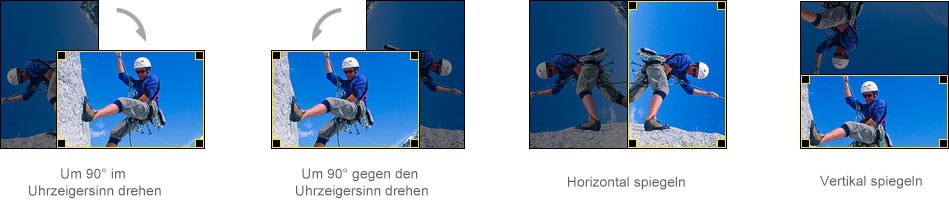
Sometimes we have videos that are filmed. Video Enhancer software provides a handy function for rotating videos. You don’t have to worry about a video with strange angles. You can also mirror your video. This feature can be quite interesting; all the actors are switched from one direction to the other.

Split a video into several parts, merge some video clips into a single file.

Adjust the brightness, contrast, saturation, hue, and volume of the output video.

Resize the image, remove the black borders to fit your screen.

Add a text or image watermark to your video.
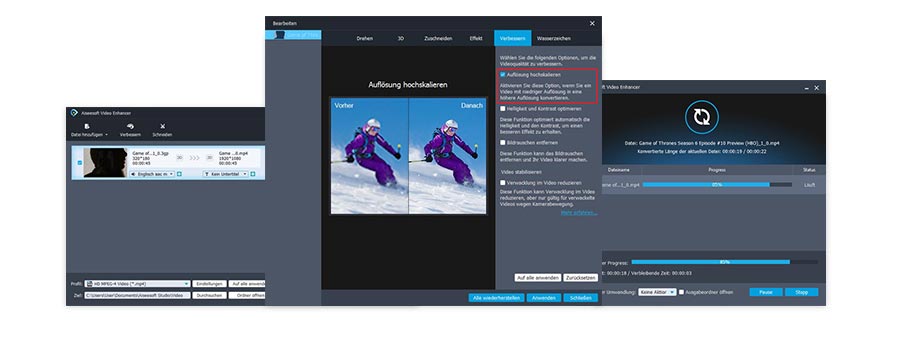
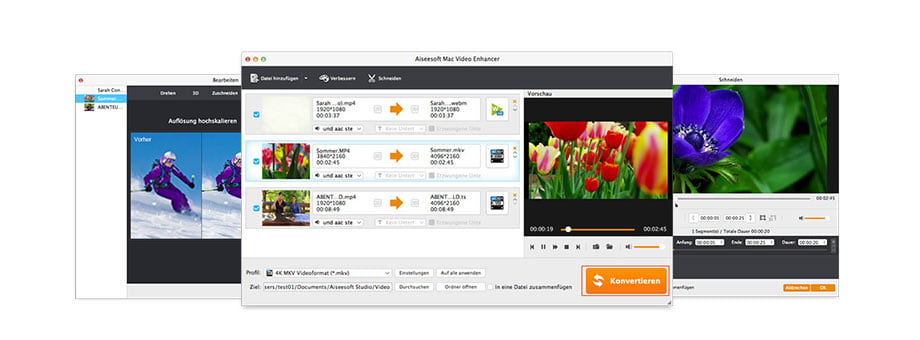
Click the “Add File” button to import video files into the program from which you want to optimize video quality.
Click on “Enhance” in the toolbar and highlight the three options. These allow you to increase the resolution, optimize brightness and contrast, and eliminate noise.
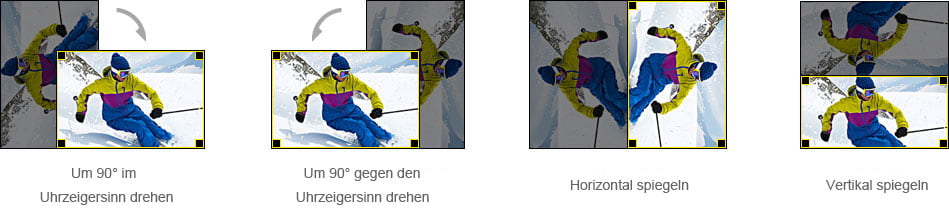
Click on Rotate and you can rotate your video 90 degrees clockwise, 90 degrees counterclockwise, flip it horizontally or vertically.
Click on “Effect” and adjust the volume, brightness, contrast, saturation and hue of the video.
If black bars around the video seem bothersome to you, you can use the “Trim” function.
Click on the “Watermark” button and you can add text and image watermarks to your video.
Click the “Cut” button in the toolbar. You can divide your video into multiple sections.
Select an output format from the “Profile” list and an output folder, then click the “Convert” button in the bottom right corner.
The video enhancement tool is gaining a good reputation for three reasons: increasing resolution, optimizing brightness and contrast, and removing image noise.

This function allows you to upscale low-resolution SD video to HD and even 4K. You can then enjoy high-quality video.

This Video Enhancer software allows you to automatically optimize the brightness and contrast of the video, which will brighten dark video images.

Noise in videos is a nuisance. Now you can reduce and remove noise with a single click, so you can get a clear video.
After the update, Video Enhancer now has a new video stabilization feature. If your video is shaky, you can use this Video Enhancer on your Mac to correct the problem and make your video more stable. This is very useful for videos shot in fast-paced situations or videos of sporting events.

Today’s high-resolution smartphone cameras offer users an easy way to record videos at weddings or family gatherings. However, for various reasons, the recorded video might be displayed sideways on the computer screen. With this Mac Video Enhancer, you can rotate your video by appropriate angles such as 90°, 180°, and 270°, both clockwise and counterclockwise. Furthermore, this video enhancement software can flip videos horizontally and vertically.
Cut video clips from a video and merge them into a new one.
Cut out the black borders in a video, set the image format.
Adjust the brightness, saturation, hue, and contrast of the video for a better effect.
Add a text/image watermark to your own video, adjust the position.

Reviews
There are no reviews yet.