
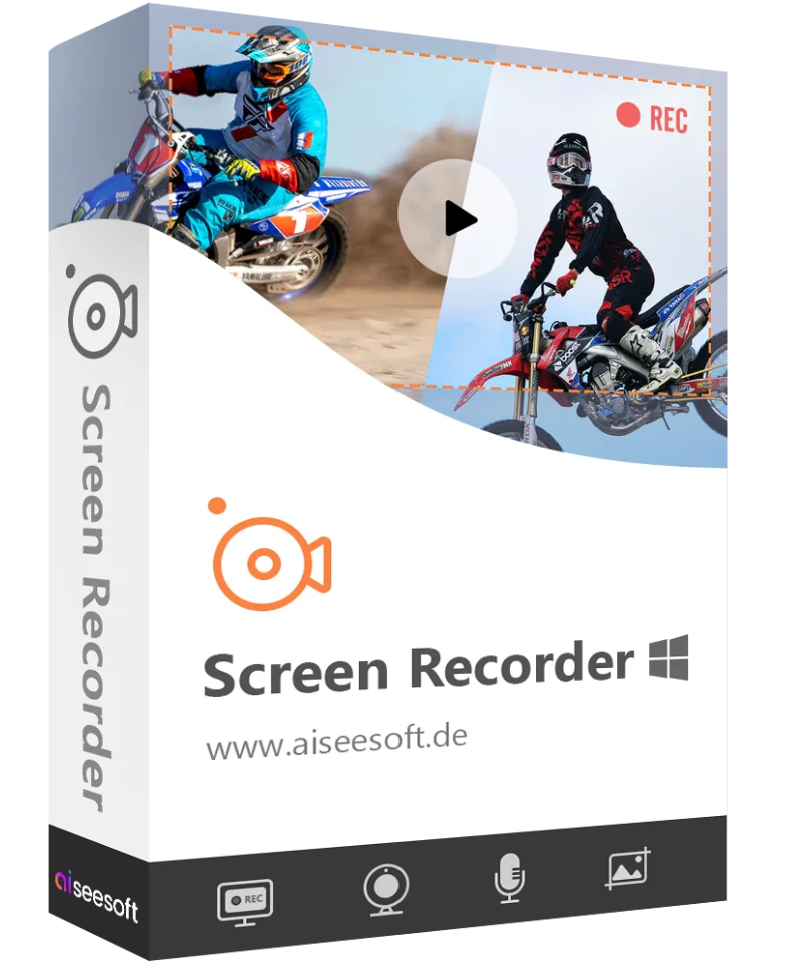
Aiseesoft Screen Recorder is the best screen recording program and allows you to record all activities on your Windows or Mac computer. With this screen recorder, you can easily record your desktop as a video, record movies and online webinars, create video tutorials, record games, record webcam feeds, record music, and take screenshots.
Whether you want to record YouTube videos, Skype calls, workout videos, save games, record music, or take screenshots, this screen recorder is the best choice for you.

Define the recording area (full screen, window object) and record high-quality videos.

Online music, internet radio, audio call recording, system sound and microphone activation according to your choice.

Take a screenshot of the computer and draw on it to easily share important information.
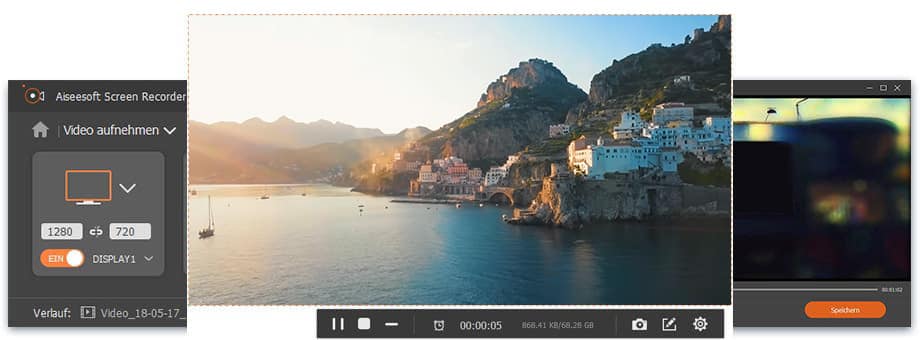
As a powerful screen recording software, Aiseesoft Screen Recorder can record and save videos on your computer in high quality. For example, you can record online videos, live streams, create tutorial videos, showcase your gameplay, record webinars, Skype calls and video chats, record webcam feeds, and much more. Before recording, you can choose whether the program captures the full screen, a window, or a specific area.
During recording, you can highlight mouse pointer movements and clicks to clearly demonstrate your actions in a video tutorial. Thanks to advanced encoding technology, you can obtain high-quality images and sound. Video recordings are saved in MP4, WMV, MOV, AVI, TS, and F4V formats, allowing you to easily play the videos in VLC Player and share them with your friends.

Streaming videos from YouTube, Vimeo, Dailymotion, Facebook, TED and other video portals can be easily recorded with the Screen Recorder.

You can record your victory in the video game and share it with your friends, or improve your technique by recording your competitors.

The Screen Recorder can record and store webcam videos. You can then watch Skype or TeamViewer conversations at any time.

With this screen capture program, you can create video tutorials and learning videos. Save time when training new team members.
Aiseesoft Screen Recorder also offers a simple option for recording audio on Windows and Mac. You can record and save your favorite music from web radio, YouTube, Spotify, and more as audio files. The program supports numerous output formats such as MP3, M4A, AAC, and WMA.
Record PC audio : Any sound from your computer can be recorded in high quality. Record online music
: If you’re listening to music on YouTube, Dailymotion, Spotify, SoundCloud, etc. Record voice from your microphone : Record your voice via the microphone to provide commentary in videos, to replay a movie, or to record a video chat.
Taking screenshots is a simple and useful way to quickly store important information. You might need them every day. Aiseesoft Screen Recorder is also a simple screenshot application that can capture anything on your computer screen and save it as an image. You can quickly select the area to capture and then add your own labels, such as rectangles, arrows, lines, and text, to the image. Screenshots can be saved in various formats, including PNG, JPEG, BMP, GIF, and TIFF.
Aiseesoft Screen Recorder is a functional software for video/audio recording and screen capture. With just a few clicks, you can record anything on your computer as video, audio, or images. Furthermore, the software offers other useful features to simplify the process.

During video capture, you can add an arrow, text, a line, a rectangle, an ellipse and many other things to the video.

In the screenshot you create, you can draw directly and highlight important content.

You can quickly change keyboard shortcuts, output format, and other options in the settings.
The Screen Recorder lets you choose whether system audio and microphone audio are recorded simultaneously. Webcam videos can also be recorded in high quality. If your computer has multiple monitors, you can quickly select the desired screen for recording. Other features of Aiseesoft Screen Recorder are listed below.

Select an area for screen recording with a single click.

Save everything in a specific window object.

Select the size of a recording area around the mouse pointer.

Set up keyboard shortcuts to easily control recording.

The current recording settings can be saved.

Add text, an arrow, a line, etc. to the video or screenshot

All videos, audio files and screenshots are quickly accessible.

Set the video format, quality, frame rate, audio quality and more.



Reviews
There are no reviews yet.